Displaying items by tag: classical music
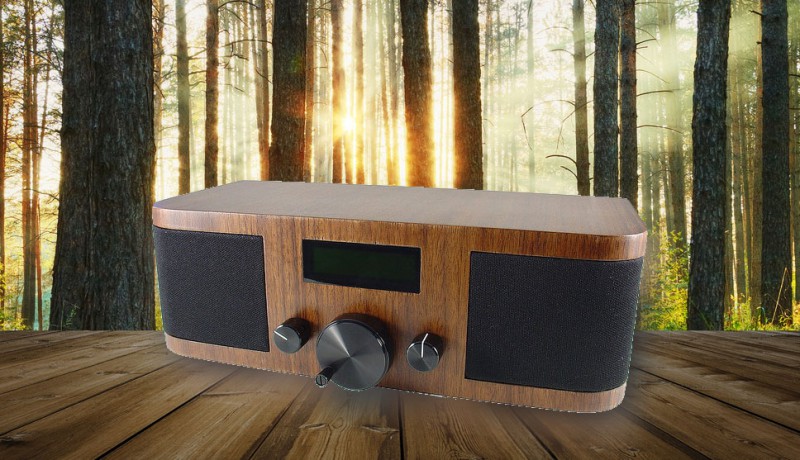
For Asus internet radios like the Air3, Calm Radio commercial-free membership channel URLs can be manually added to this device. Calm Radio's commercial-free channels are available to members of Calm Radio and feature audiophile HD 320K bitrate.
Setup Instructions
Here is how to Calm radio URLs on your Asus device:
Step 1
- Visit the My Account menu on the CalmRadio.com website.
- Choose "My Internet Radio URLs" from the bottom of the page.
- Select "View Full Table."
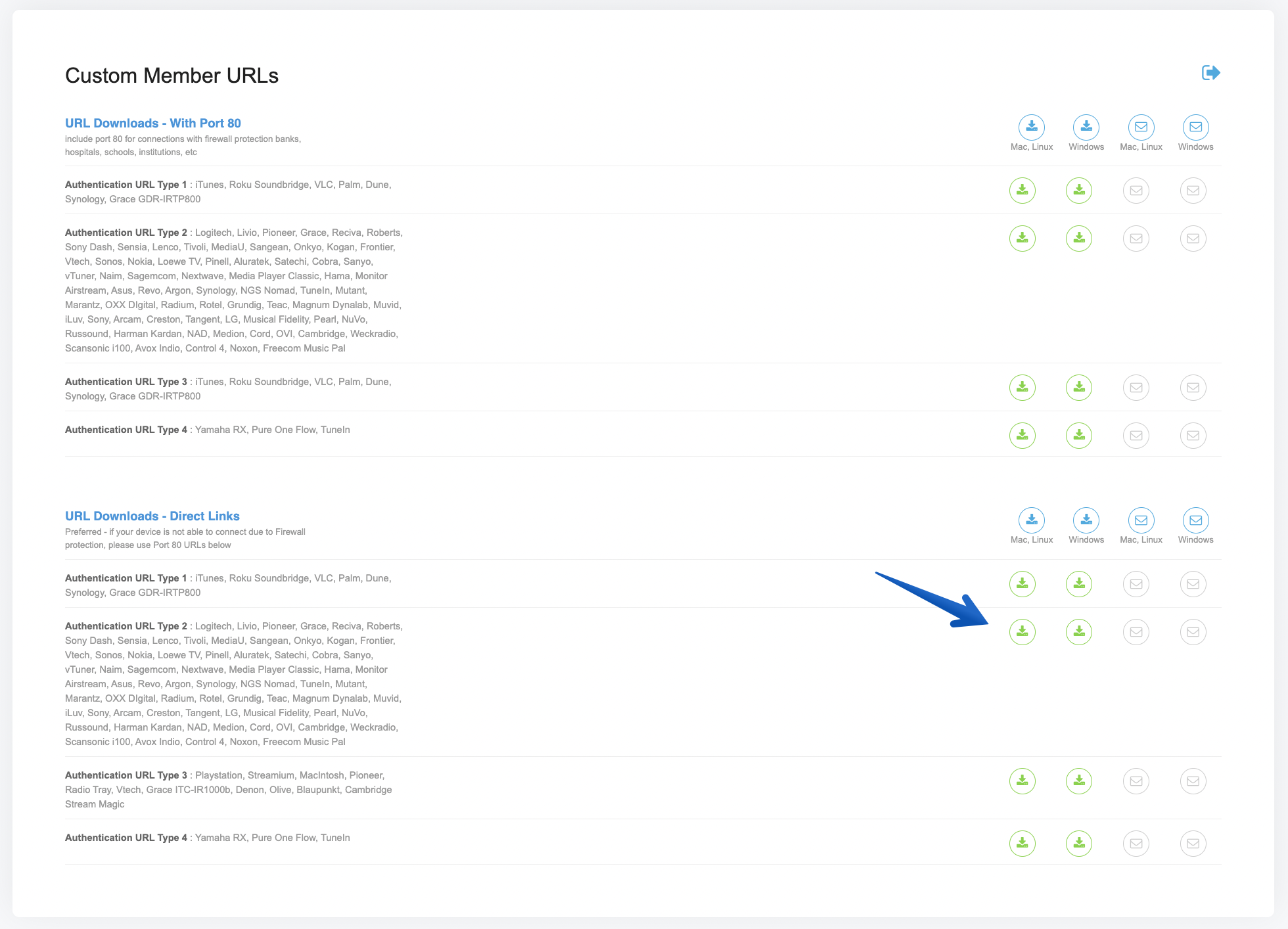
- Choose either "Direct Links" (preferred) or "With Port 80" Authentication URL Type 2.
Step 2
- Asus internet radios do not use an web-based management portal and must be entered manually into your radio.
- From the main menu, select Internet Radio >> Service >> Add New Station Carefully
- Carefully add one of the custom URLs we sent you. (Refer to the "Text Entry" section of your manual on how to do this.) When finished, press OK and your new Calm radio channel will be added to "My Favorites" on your Asus.
- Contact Asus at http://vip.asus.com/eservice/techserv.aspx (recommended)... Your AIR3 radio station list will be updated automatically.
Additional Info
- Item Layout center
- Show header image (only support items) no
- Header color (only support items) dark
- German version 3901
- French version 3899
- Italian version 3903
- Russian version 3907
- Spanish version 3909
- Chinese version 3895
- Japanese version 3905
- Dutch version 3897
- Portugese version 4167
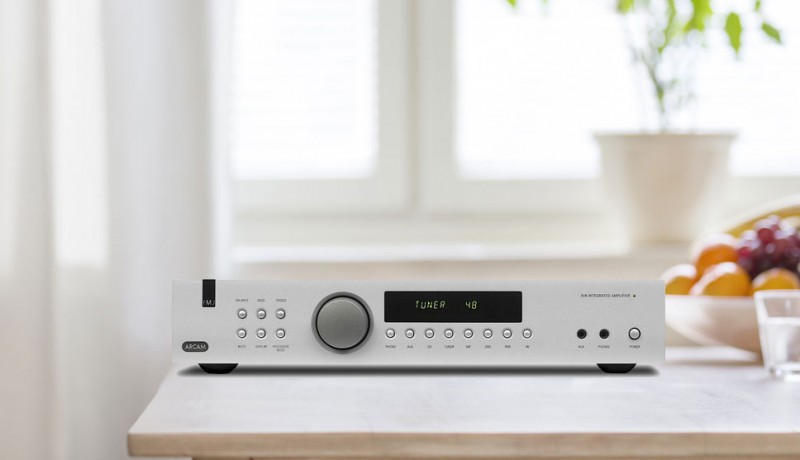
Arcam internet radios use the vTuner.com web management portal to manually add Calm Radio’s custom radio station URLs. This is how you can add our Calm Radio's custom HD sound-quality member URLs to show up on your radio’s INTERNET RADIO menu, which will then synchronize automatically with your vTuner.com account.
Setup Instructions
Step 1
- Visit the My Account menu on the CalmRadio.com website.
- Choose "My Internet Radio URLs" from the bottom of the page.
- Select "View Full Table."
- Choose either "Direct Links" (preferred) or "With Port 80" Authentication URL Type 2.
- Download or email the URLs you will need to enter into the MY ADDED STATIONS menu of your vTuner.com account.
Step 2
- Next, you need to register for an account at vTuner.com
- You will need to add your custom Calm Radio URLs to the vTuner.com website either your device’s MAC address, or a registration code. Please check your internet radio's user manual.
Step 3
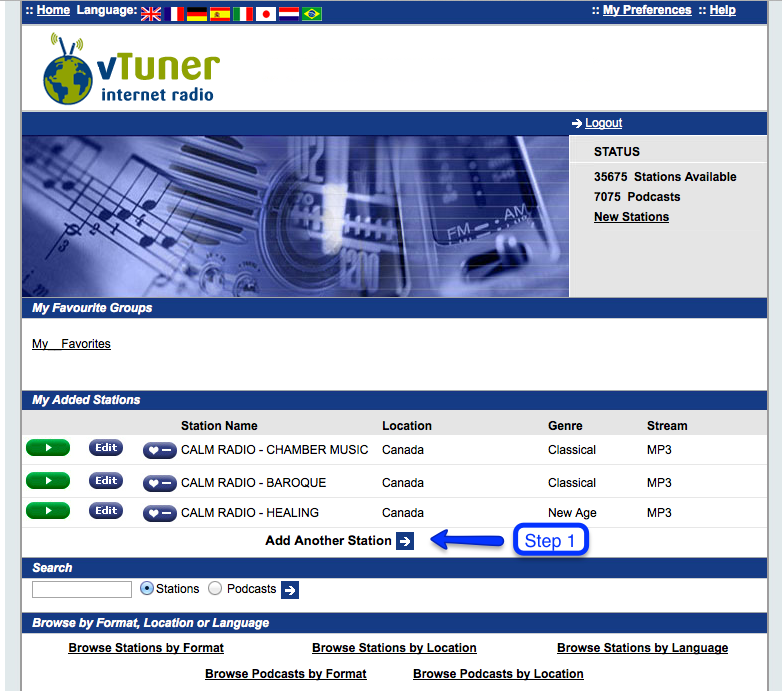
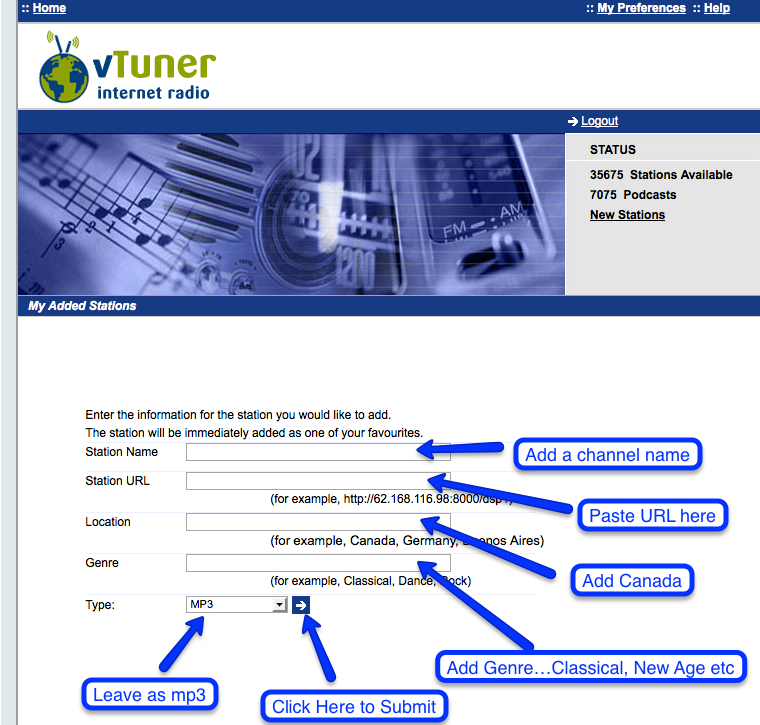
- On the vTuner website, look for the "My Added Stations" menu.
- Click "Add Another Station" to create a new station entry.
Step 4
- In Box 1, Add a Station Name like "CALM RADIO - Solo Piano"
- In Box 2, carefully copy any Calm Radio custom URLs you downloaded or had emailed into Box 2. You can use a High Medium or Low URL. High will require excellent high-speed internet bandwidth.
- In Box 3 add Canada for the Location
- In Box 4 add the genre, i.e...Classical, New Age, Atmosphere, Relaxation...
- Next line should be MP3
- Click the arrow to accept your entry
Step 5
- On your internet radio, select or press the "Network" menu Then select or press the Internet Radio menu PLEASE NOTE: If the Internet Radio menu is already playing, hit the "Back" button
- Select the Added Stations menu. Your new Calm Radio channel will show up there.
Additional Info
- Item Layout center
- Show header image (only support items) no
- Header color (only support items) dark
- German version 2987
- French version 2985
- Italian version 2989
- Russian version 2993
- Spanish version 2995
- Chinese version 2981
- Japanese version 2991
- Dutch version 2983
- Portugese version 4175
Want to listen without commercials and in HD audio quality?
- Visit the Subscribe menu
- Choose a subscription plan
- After upgrading, log into the Calm Radio music service on your Sonos app. If you are already logged in, change to another music channel to refresh your member status
Free User Registration
Want to listen free on the Calm Radio Sonos music service?
- Visit our Registration menu
- Once you've registered, enter your login on the Calm Radio music service on your Sonos
Installing Calm Radio on your Sonos
Calm Radio is available free on the Sonos platform. Here is how to add us to your Sonos:
iOS or Android
- Install the Sonos app from the App Store or Google Play store
- From your mobile device, open the Sonos app
- Select the Settings menu and choose Services
- At the bottom of this menu, select Add a Service
- Select Calm Radio
- Follow the instructions to authorize your Calm Radio account.
- The Calm Radio music service will now appear under the Browse menu
Mac or PC
- Install the Sonos app by visiting Sonos Support
- From your computer, open the Sonos app
- In the Select a Music Source menu, choose Add Music Services
- Select Calm Radio
- Follow the instructions to authorize your Calm Radio account.
- The Calm Radio music service will now appear under the Select a Music Source menu
Please Note
Calm Radio channels that have been added to the Sonos Favorites or My Sonos menu from third-party music providers are "free" channels and will have commercials.
If you are a Calm Radio member, please use the Calm Radio music service to avoid hearing commercials. Or, if you'd like to add Calm Radio channels to your Sonos Favorites or My Sonos menu, be sure you are signed into the Calm Radio music service with your member login then add your favorite channels directly from the Calm Radio music service.
Additional Info
- Item Layout center
- Show header image (only support items) no
- Header color (only support items) dark
- German version 2799
- French version 2801
- Italian version 2797
- Russian version 2793
- Spanish version 2791
- Chinese version 2805
- Japanese version 2795
- Dutch version 2803
- Portugese version 4133